
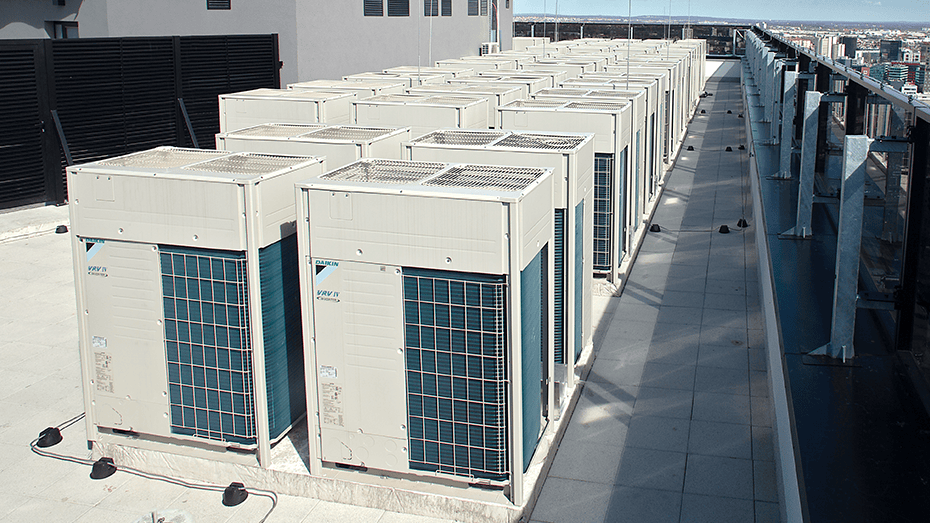
Whether the system is missing indoor units, throwing U4 alarms, or not seeing devices correctly, the issue is usually related to communication wiring, addressing, or controller setup.
Before getting too deep into troubleshooting, we typically start by verifying the communication path and indoor unit count.

Here are a few of the first things we typically check in the field.
Common Symptoms
- U4 communication alarms
- Missing indoor units during startup
- Group addresses not appearing
- Fan coils not responding to controls
- Central controller or ITM not communicating properly
Step 1: Run a Communication Check
At the main outdoor unit, perform a Mode 1-10 communication check to verify how many indoor units the system is detecting.

VRV4+ Communication Check
- Wait for initialization to finish after power-up
- Press the MODE button once
- Press SET until you reach Mode 1-10
- Press RETURN
- The display will show the number of detected indoor units
If the count does not match the installed indoor units, there is likely a communication issue somewhere in the system.
To force the system to re-address the indoor units, hold the return button at the outdoor unit for 40 seconds. This is commonly done after removing fan coils, replacing outdoor units, or resolving cross wiring issues at branch selector boxes.
Step 2: Verify F1/F2 Wiring
Communication wiring issues are one of the most common causes of U4 alarms.

Things we typically check:
- Loose wire connections (check factory connections to back of F1F2 terminal block. These are the only wires in the unit that aren’t plug connections)
- Broken communication wiring at disconnects
- Incorrect daisy chain wiring
- Corroded wire nuts or loose factory terminal connections
In some cases, temporary test wiring can help isolate EMI interference or damaged wiring inside the building.
Step 3: Check Group Address & Airnet Address
If group addressing is missing or devices are not communicating correctly through the ITM or central controller, verify the group and Airnet addresses at the navigation controller.
BRC1E73 Navigation Controller
- Hold CANCEL to enter the back menu
- Navigate to:
- Group Address
- Airnet Address
- Verify values match the unit sticker or database
- Press OK to lock in the settings
- If the value is highlighted or says release at the top, the value is not saved or set

Important note:
- Group address options will not appear unless the central controller is communicating properly through the D3 network
If the group address menu does not appear, it may indicate a wiring or communication issue between the indoor unit and central controller.
Common Field Issues We See
- Indoor unit power turned off
- F1/F2 swapped with P1/P2
- Cross-wiring between indoor units
- Communication wiring broken at disconnect switches
- Central controller communication loss
- Loose factory terminal connections

Quick Field Tip
If communication problems seem random or inconsistent:
- run a temporary 18/2 stranded, unshielded, communication wire to replace suspicious runs
- if the problem disappears, there could be wire nuts in junction boxes, EMI interference or damaged wiring causing the issue
Why This Matters
Communication issues can delay startup, create nuisance alarms, and lead to unnecessary callbacks. A structured communication check early in the process can save significant troubleshooting time later.